A hero component is an absolute staple in modern website designs. We have all seen plenty of them, a large media element at the top of the page, usually full-width, sometimes a-portion-of-the-screen tall, other times as tall as the entire initial screen.
And for the past several years, video hero components have been all the rage. Marketing loves them because we users love shiny things. You can even find collections of examples all over the Internet…
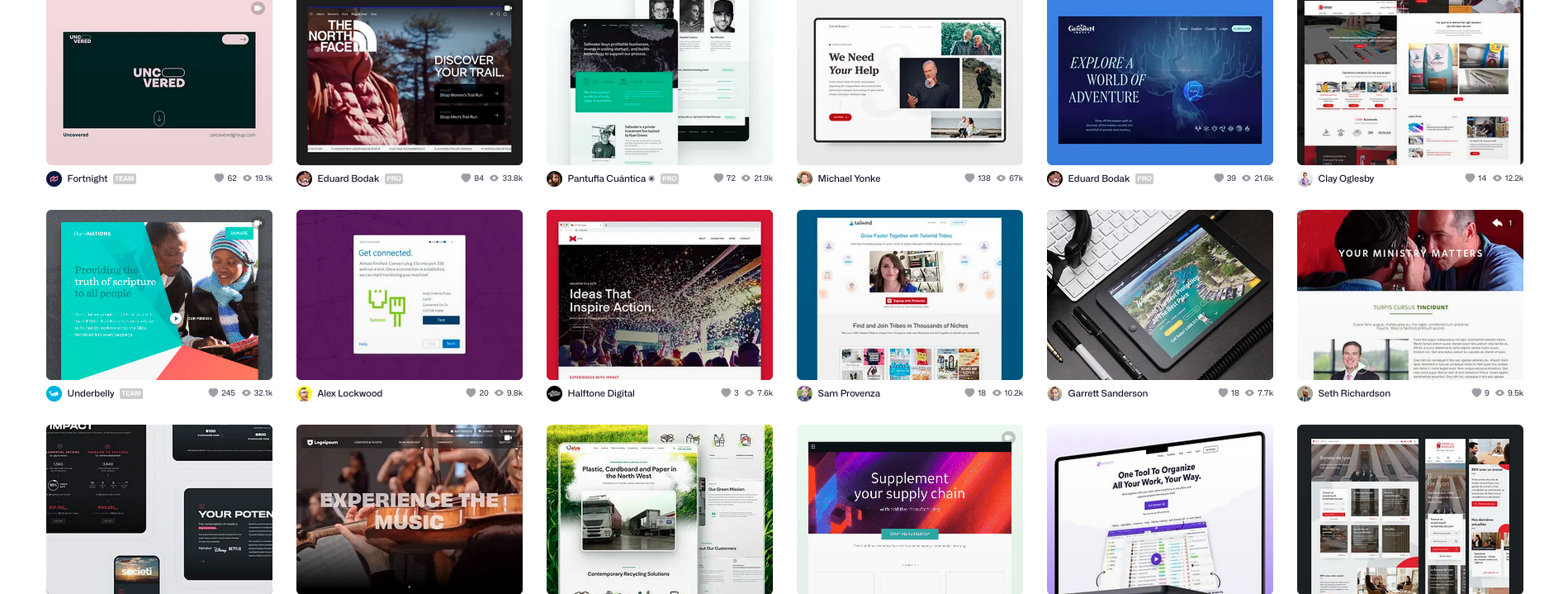
And I must admit, a nice splashy video at the top of the page, as the first thing you see, really does catch one’s attention! Except when it isn’t there…
TOC
- The Problem
- An Attempted Solution
- The Responsive Solution
- Comparison
- Demo
- Optional Enhancements
- Challenges
- Future Hope?
- Resources
The Problem
There are several challenges with using videos at the top of the page, including:
- Videos typically take longer than images to download, because they tend to be larger files.
- Videos cannot start playing until a certain amount has downloaded.
- Videos cannot be preloaded, like images can be, so the browser doesn’t even know it needs to start downloading them until it sees the video element within the HTML.
- Designers like to position promotional text over the video which can result in something like white text on a white background…
So until the browser finds the video element and downloads enough to start playing, there is nothing for the user to see. They just sit there, staring at that big old empty space, wondering whether something is happening, or whether something is broken…
And don’t even get me started on mobile users, using data connections, trying to download that big fat shiny video of yours…
Luckily, when this issue presents itself, it does so not only to the user, but also in our analytics! (You are using, and checking, your real-user monitoring (RUM), right?) Specifically, in this case, as a higher-than-normal Largest Contentful Paint (LCP) and, depending how the video player is added to the page, it could also be seen in a higher-than-normal Cumulative Layout Shift (CLS).
In this very light example page, the portrait view recorded an LCP of ~3.7s and the landscape ~3.4s; CLS recorded ~0.14 and ~0.07, respectively:
An Attempted Solution
Some of you keen observers may be saying “just use a poster, numbskull!” First of all, that is not nice. Second of all, posters do work well, except in two common situations:
- Responsive videos (when you need different aspect-ratio videos, depending on the screen size): The
posterattribute/value can only be set on thevideoelement, not on anysourceelements within thevideoelement. This means you cannot have a differentposterimage for each different video aspect-ratio (i.e. portrait versus landscape layouts). In this case, users would always get one or the other poster image, regardless of their device’s screen size. - Below-the-fold (not visible on the initial page load): If your video component is below-the-fold, you can lazy load the video asset (using
preload="none"on thevideoelement), but you can not lazy load theposterasset attached to thatvideoelement; it will download as soon as the browser sees it, which could delay another, more critical asset from downloading, and may even be completely unnecessary to download if the user doesn’t scroll down far enough to see it.
So, if you only have a single video asset that you want to serve for all device sizes, and it will always be above-the-fold, then a single video element with a poster attribute/value will work fine. Otherwise…
The Responsive Solution
If you have multiple video aspect-ratios, then you need multiple image aspect-ratio. And the easiest way to do that, is by using the picture element!
By creating a picture > source structure that matches the video > source structure, you can use CSS grid to layer them over one another. Specifically, layer the video over the picture.
To the user, they will see the image first (because it will download faster than the video), and when the video downloads enough to start playing, it will do so over the image. The effect is especially powerful if the image is the first frame of the video; in this way, the image sort of “comes to life”…
Using the same example page from above, but this time including a picture element, the portrait view recorded an LCP of ~1.9s (was ~3.7s) and the landscape ~2.0s (was ~3.4s); CLS recorded ~0.00 for both (was ~0.14 and ~0.07, respectively):
The HTML would be something like this:
<div class="container--media">
  <picture>
    <source
            fetchpriority="high"
            width="720"
            height="1280"
            srcset="/path/to/portrait/image.webp"
            media="(max-width: 480px)" />
    <source
            fetchpriority="high"
            width="1280"
            height="720"
            srcset="/path/to/landscape/image.webp"
            media="(min-width: 481px)" />
    <img src="" alt="Wonderfully descriptive text" />
  </picture>
  <video playsinline autoplay loop muted controls>
    <source
            fetchpriority="high"
            width="720"
            height="1280"
            src="/path/to/portrait/video.mp4"
            media="(max-width: 480px)" />
    <source
            fetchpriority="high"
            width="1280"
            height="720"
            src="/path/to/landscape/video.mp4"
            media="(min-width: 481px)" />
  </video>
</div>
The CSS needed to create the “video-over-picture” layout would be something like this:
.container--media {
  width: 100%;
  height: auto;
  display: grid;
  grid-template: "media";
  place-items: stretch;
  place-content: stretch;
  & > * {
    grid-area: media;
  }
  & img, video {
    display: block;
    width: 100%;
    height: auto;
    object-fit: cover;
  }
}
Comparison
Beyond the impressive metric improvements above, the visual side-by-side is quite telling:
Demo
Initially I created a CodePen, but stumbled on some inconsistencies that I assume are related to the iframe environment.
So, instead, both of the live demo pages from above are housed within a “lab” page on my server.
Notes:
- Firefox does not autoplay for me, so you might need to manually click the play control. It loses some of the effect, but you can still see the image being “covered” by the video when the Image text disappears.
- Again, as the demo pages are quite light, I highly recommending emulating a slower network connection to get the full effect (Fast or Slow 4G should suffice).
Optional Enhancements
Use aspect-ratio to prevent CLS
The example above that did not include the picture element experienced CLS because the container size was not known until the browser downloaded the video metadata.
If you wanted, you could use aspect-ratio to set the container size, but this will require syncing the breakpoints that you already have in your HTML with your CSS.
If you are okay with this, the additional CSS would look something like this:
...
& img, video {
  @media (max-width: 480px) {
    aspect-ratio: 720/1280 auto;
  }
  @media (min-width: 481px) {
    aspect-ratio: 1280/720 auto;
  }
}
Add "preload" links for each image
Depending on your page structure (and girth!) you may see little or no benefit from this, as was the case for my little demo pages; there simply isn’t enough other content being downloaded or activities happening to sufficiently delay the browser’s normally excellent work. But on a typical production, ecommerce site, I have seen this improve the LCP by 2-3s or more!
If you want/need to add "preload" links, the links would need to go into the head of the page, as high as possible, but after the meta name="viewport"; the HTML would look something like this:
  <meta name="viewport" content="width=device-width, initial-scale=1">
  <link rel="preload" as="image" fetchpriority="high" href="/path/to/portrait/image.webp" media="(max-width: 480px)">
  <link rel="preload" as="image" fetchpriority="high" href="/path/to/landscape/image.webp" media="(min-width: 481px)">
Content Overlay
Building on the above component, you can also overlay content, as in the demo pages.
Wrap the above HTML with something like this:
<div class="container--media-content">
  <div class="container--media">
    <picture>
      ...
    </picture>
    <video playsinline autoplay loop muted controls>
      ...
    </video>
  </div>
  <div class="container--content">
    <h1>My Brilliant Product</h1>
    <p>Something you really need to buy now!</p>
    <button>Add to Cart</button>
  </div>
</div>
The new CSS needed would be something like this:
.container--media-content {
  display: grid;
  grid-template: "media-content";
  place-items: center;
  place-content: start;
  & > * {
    grid-area: media-content;
  }
}
.container--content {
  position: relative;
}
Below-the-Fold
If the video component will be “below-the-fold” (initially offscreen, not visible to the user when the page first loads), then you will not want to use any preload link or fetchpriority attribute, and you will want to lazy load all of the image and video assets.
The resulting HTML would look something like this:
<div class="container--media">
  <picture>
    <source
            loading="lazy"
            width="720"
            height="1280"
            srcset="/path/to/portrait/image.webp"
            media="(max-width: 480px)" />
    <source
            loading="lazy"
            width="1280"
            height="720"
            srcset="/path/to/landscape/image.webp"
            media="(min-width: 481px)" />
    <img src="" alt="Wonderfully descriptive text" />
  </picture>
  <video playsinline data-autoplay loop muted controls>
    <source
            preload="none"
            width="720"
            height="1280"
            src="/path/to/portrait/video.mp4"
            media="(max-width: 480px)" />
    <source
            preload="none"
            width="1280"
            height="720"
            src="/path/to/landscape/video.mp4"
            media="(min-width: 481px)" />
  </video>
</div>
Challenges
For the most part, I feel like this is a pretty simple, elegant component, considering how versatile and robust it is. But, of course, nothing is perfect…
- As I mentioned above, this layout is most effective when the image for each video is the first video frame. This isn’t hard to do, but it isn’t easy either, especially at scale. At one point, I began looking into how to “scrape” the first frame when the video is uploaded to a CMS, but the CMS my work was using at the time wasn’t going to allow this, so I moved on. It could still be an elegant solution…
- But then you would also need a way of “connecting” the video and the image in the CMS, to make sure that, as you add a video to a page, you also get the correct image for each version of each image… Naming conventions could help, but again, at scale, this could easily fall apart.
- Beyond syncing the correct image with the correct video, there is also a lot of syncing happening within the HTML, which might not always be in the same file/template:
- If you are using
preloadlinks, the URLs for the images you add to each page need to be added to thepreloadlinks, which need to go into theheadelement. - If you are using
preloadlinks, the breakpoints for the images and videos within the content need to be synced with the breakpoints in thepreloadlinks. Ideally, this is a one-time, set-it-and-forget-it template update, but different layouts across different pages/templates could require different breakpoints. - The image and video assets need to be the exact same width and height, and those values have to be included in the
sourceelements of both thepictureandvideoelements. - If your page components can either migrate up and down the page, or be used anywhere within the page, considerations need to be made to deal with the correct autoplay, lazy load (and maybe
preloadlink) settings. - If a video should autoplay, but it appears below the fold, know that currently there is no native way for a video to be lazy loaded and autoplay when it scrolls into view; to do this, you would need to convert the
autoplayto something like adata-autoplay, then have JS look for that, using an IntersectionObserver to monitor when it gets close to the viewport, and trigger the autoplay programmatically.
- If you are using
Some of the above are also issues outside of this component, but I wanted to make sure they were stated.
Future Hope?
There is hope on the horizon for some of those challenges being discussed by some really smart people.
With luck, all of this could be solved some day by an adaptation to a standard.
Resources
I doubt very much that I am the first to think about this, but I am documenting my process nonetheless.
I was heavily influenced by the following:
- Scott Jehl‘s Responsive Video Works Now. These Features Could Make It Work Better.
- Ryan Mulligan‘s Positioning Overlay Content with CSS Grid
Happy videoing,
Atg
Really interesting and taught me a few things (and also might need to revert some recent recommendations – always learning!)
On a general note, thank you for writing this up as it’s quite a common component and I’ve not seen a lot of guidance of this nature so it’ll come in handy for me and many others.
Thanks, yeah, I was surprised that I couldn’t find anyone else writing about it exactly like this yet either…